How to Add a New Domain in DirectAdmin

This article will show you how to add a new domain in DirectAdmin.
1. Log in to DirectAdmin
Use your user details to log in to the DirectAdmin control panel.

2. Navigate to the Domain Management Section
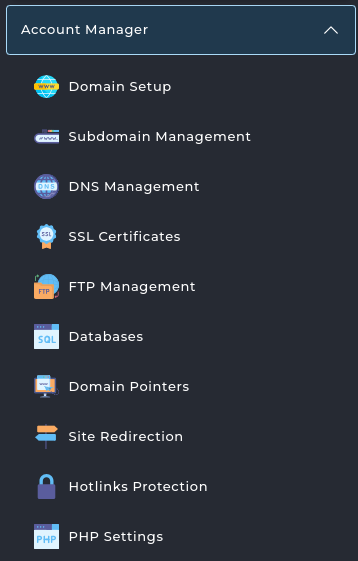
On the homepage, click on Domain Setup under the Account Manager section.
3. Add a New Domain
Click on the Add New button in the top right.

4. Enter Domain Details
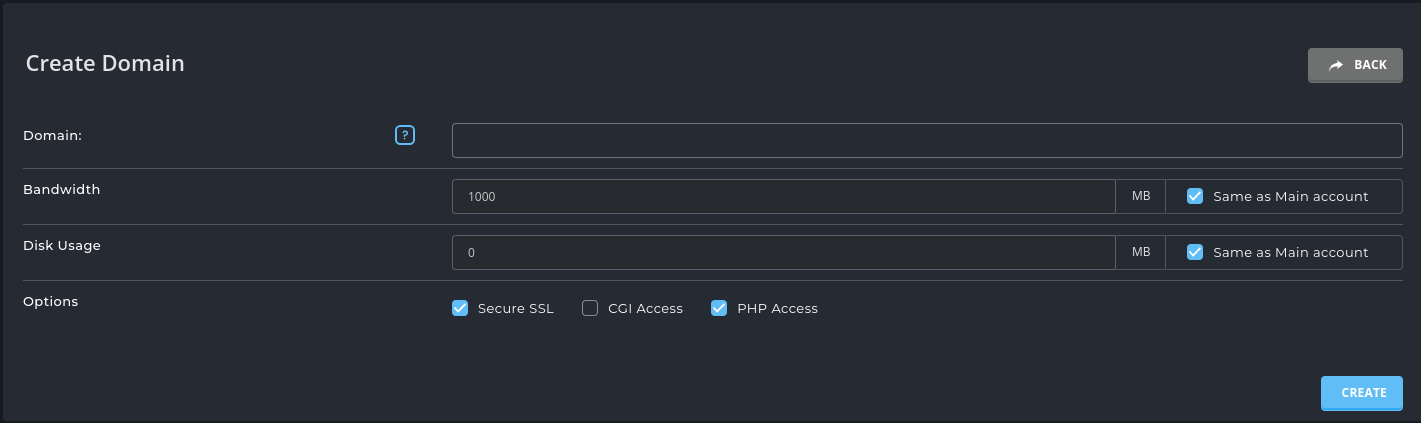
- Domain Name: Enter the domain name you wish to add (e.g., example.com).
- IP Address: Choose the IP address for the domain (if applicable).
- Bandwidth: Set the desired bandwidth limit for the domain.
- Disk Usage: Set the desired disk usage for the domain (storage space).
- Options: Choose additional options such as Secure SSL, CGI Access, and PHP Access.
5. Create the Domain
Click the Create button to finish adding your new domain.

Congratulations! You’ve successfully added a new domain to your DirectAdmin account.